
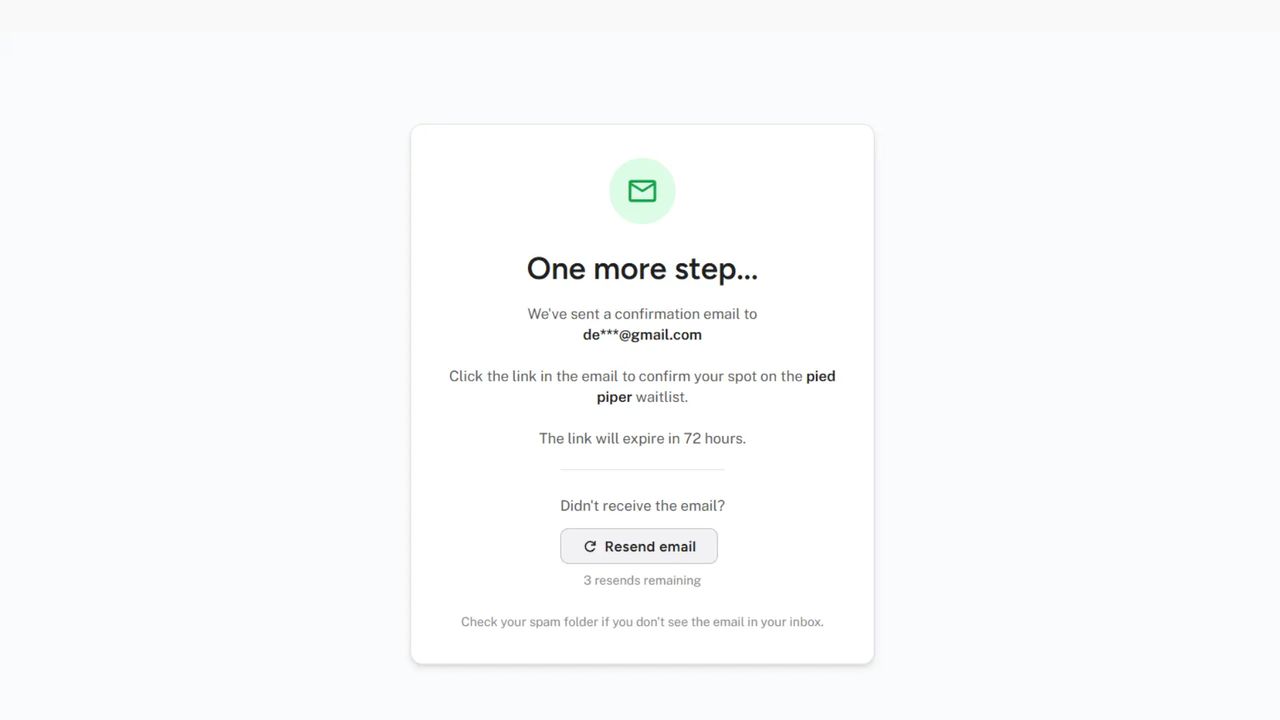
Double opt-in is now available for all waitlists on the Launch plan and higher. When enabled, subscribers must confirm their email address before being added to your waitlist — ensuring every subscriber is verified and genuinely interested.
View double opt-in documentation →
What's Included
Email Verification Flow
Subscribers confirm their email before joining your waitlist.
- Automatic Confirmation Emails - Sent instantly when someone signs up
- Confirmation Pending Page - Clean "check your email" experience with resend option
- One-Click Confirmation - Subscribers click a link to verify and join
- Configurable Expiration - Set link validity from 12 to 168 hours
Customizable Confirmation Email
Full control over the confirmation email design and content.
- Visual Email Editor - Same editor as welcome emails and broadcasts
- Template Variables - Personalize with subscriber name, product name, and more
- Custom Sender - Use your own email domain for better deliverability
- Brand Matching - Match colors, fonts, and styling to your brand
Seamless Integrations
Works with all existing Waitlister features.
- Landing Pages - Double opt-in works automatically
- Embedded Forms - No code changes required
- Form Action Endpoint - Redirects to confirmation page
- API - New
is_pending_confirmationresponse field - Referral Program - Credit awarded only after confirmation
Why Use Double Opt-in?
Double opt-in provides several benefits.
| Benefit | Description |
|---|---|
| Verified Emails | Every subscriber has proven access to their email |
| Better Deliverability | Lower bounce rates improve inbox placement |
| Spam Prevention | Bots can't complete the confirmation step |
| Higher Quality Leads | Confirmed subscribers show genuine interest |
| Compliance Support | Clear consent documentation for GDPR/CAN-SPAM |
How It Works
- User signs up - Through any signup method (landing page, form, API)
- Confirmation email sent - Automatic, customizable email with verify link
- User confirms - Clicks the link in their email
- Added to waitlist - Position assigned, referral code generated
- Welcome email sent - If enabled, sent after confirmation
Get Started
Enable double opt-in in your waitlist settings:
- Go to your waitlist dashboard
- Navigate to Settings → Security
- Toggle on "Require email confirmation"
- Set your preferred link expiration time
- Customize your confirmation email in Emails → Confirmation