
Features
Double Opt-in
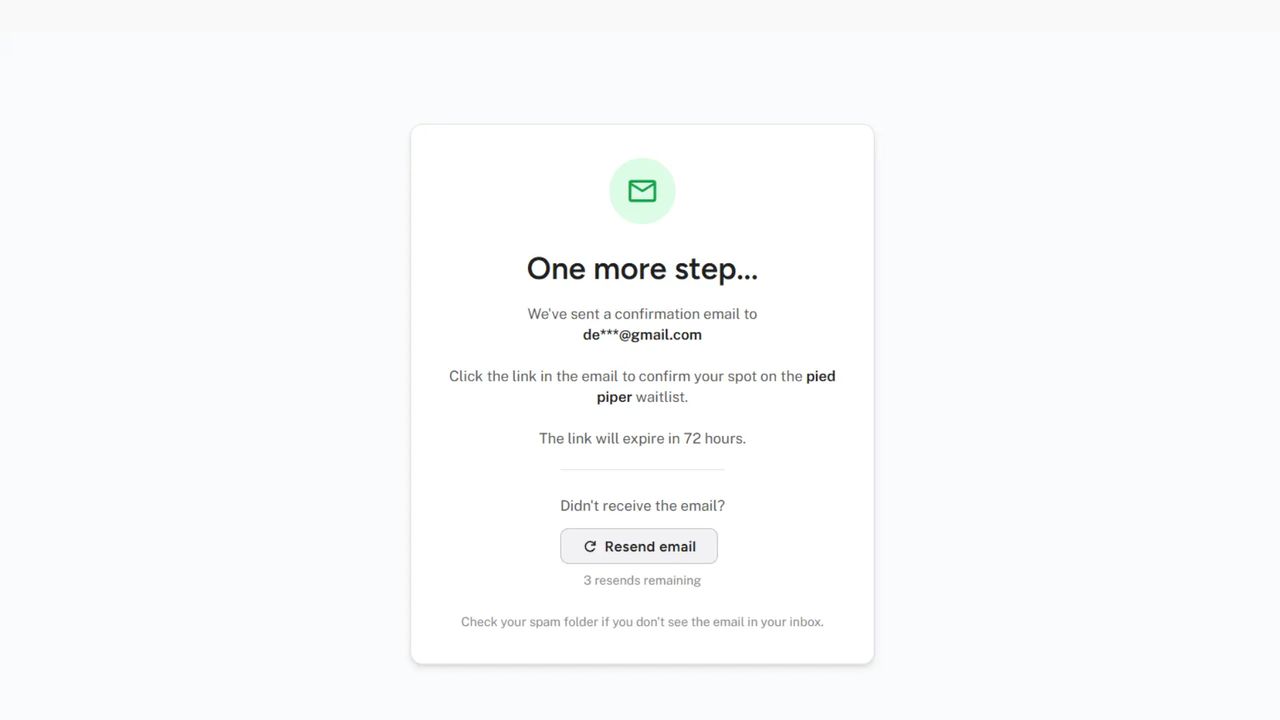
Double opt-in requires subscribers to confirm their email address before being added to your waitlist. When enabled, new sign-ups receive a confirmation email with a link they must click to verify their subscription. This ensures only real, engaged users join your waitlist.
Double opt-in is available on the Launch plan and higher.
Why Use Double Opt-in?
Double opt-in provides several important benefits for your waitlist.
Verified Email Addresses
Every subscriber on your list has proven they have access to the email address they provided. No more fake emails, typos, or mistyped addresses cluttering your waitlist.
Improved Deliverability
Email providers like Gmail and Outlook reward senders with low bounce rates. By ensuring all emails are valid before sending welcome emails or announcements, your messages are more likely to reach inboxes instead of spam folders.
Reduced Spam Sign-ups
Bots and bad actors typically can't complete the confirmation step. Double opt-in acts as a natural filter against automated spam submissions.
Higher Quality Leads
Users who take the extra step to confirm their email demonstrate genuine interest in your product. These subscribers are more likely to engage with your emails and convert when you launch.
Compliance Support
Double opt-in provides clear documentation of consent, which helps with GDPR, CAN-SPAM, and other email marketing regulations. You have proof that each subscriber actively confirmed their subscription.
How Double Opt-in Works
When double opt-in is enabled, the sign-up flow changes.
The Confirmation Flow
- User submits email: Through your landing page, embedded form, or API
- Confirmation email sent: Waitlister automatically sends a confirmation email
- User clicks confirmation link: The email contains a unique, time-limited link
- User added to waitlist: After clicking, they're officially on your list
- Welcome email sent: If enabled, the welcome email is sent after confirmation
- Thank-you page shown: User sees their position, referral code, and sharing options
Confirmation Pending Page
After submitting their email, users see a "check your email" page that:
- Confirms the confirmation email was sent
- Shows their masked email address
- Displays the link expiration time
- Provides a "Resend email" button (up to 3 resends)
- Reminds them to check their spam folder
Confirmation Link Expiration
Confirmation links expire after a configurable time period (default: 48 hours). This prevents old, forgotten sign-ups from cluttering your waitlist and ensures subscribers confirm while still engaged.
If a link expires, the user can simply sign up again to receive a new confirmation email.
Enabling Double Opt-in
To enable double opt-in for your waitlist:
- Navigate to your waitlist dashboard
- Go to "Settings" → "Security" tab
- Toggle on "Require email confirmation (double opt-in)"
- Set your preferred link expiration time (24, 48 or 72 hours)
- Click "Save changes"
Configuration Options
| Setting | Description | Default |
|---|---|---|
| Enable double opt-in | Toggle the feature on/off | Off |
| Link expiration | Hours until confirmation links expire | 48 hours |
Customizing the Confirmation Email
The confirmation email is fully customizable to match your brand.
Accessing the Editor
- Go to your waitlist dashboard
- Navigate to "Emails" → "Confirmation"
- Click "Edit" to customize
Customizable Elements
- Sender name: Who the email appears to be from
- Sender email: The email address (uses your custom domain if configured)
- Reply-to address: Where replies are sent
- Subject line: The email subject (supports template variables)
- Email body: Design the content visually with the block editor (text, images, buttons, and more)
- Design settings: Background colors, fonts, and content width to match your brand
- Confirm button: Add a button block (or a link in a text block) pointing to
{{link.confirm}}— the editor requires a confirm link before you can save
Template Variables
Use these variables in your confirmation email:
| Variable | Description | Example |
|---|---|---|
{{subscriber.email}} | Subscriber's email | john@example.com |
{{subscriber.name}} | Subscriber's name | John Doe |
{{subscriber.first_name}} | First name | John |
{{waitlist.name}} | Your product name | Amazing Product |
{{link.confirm}} | Confirmation URL | https://... |
{{expiration_hours}} | Hours until expiration | 48 |
Default Confirmation Email
If you don't customize the confirmation email, Waitlister sends a clean, professional default:
Subject: Confirm your email for [Product Name]

Hey [First Name] 👋

Thanks for signing up for the [Product Name] waitlist!

Please confirm your email address to secure your spot:

[Confirm My Email Button]

This link will expire in 48 hours.

If you didn't sign up for this waitlist, you can safely ignore this email.

Cheers,
The [Product Name] Team
Integration with Other Features
Double opt-in works seamlessly with all Waitlister features.
Referral Program
When double opt-in is enabled:
- Referral credit is awarded only after the referred user confirms their email
- This prevents gaming the system with fake referrals
- The referrer's points update automatically upon confirmation
Welcome Emails
Welcome emails are sent after confirmation, not at initial sign-up. This ensures:
- Welcome emails only go to verified addresses
- Users receive the welcome email when they're most engaged (just clicked confirm)
- No wasted emails to unconfirmed addresses
API Integration
The Add Subscriber API fully supports double opt-in:
// Response when double opt-in is enabled
{
  "success": true,
  "is_new_sign_up": true,
  "is_pending_confirmation": true,
  "message": "Please check your email to confirm your sign-up",
  "redirect_url": "https://waitlister.me/confirm-pending/..."
}
Check the is_pending_confirmation field to determine if the user needs to confirm.
Form Action Endpoint
The form action endpoint automatically handles double opt-in.
- Standard form submissions redirect to the confirmation pending page
- AJAX submissions receive JSON with
is_pending_confirmation: true - No code changes required when enabling double opt-in
Custom Email Domains
Confirmation emails respect your custom email domain settings.
- Emails are sent from your domain (e.g.,
noreply@yourdomain.com) - Improves deliverability and brand recognition
- Automatic fallback to Waitlister domain if not configured
Resend Limits
To prevent abuse, confirmation email resends are limited:
| Limit | Value |
|---|---|
| Maximum resends | 3 per sign-up |
| Cooldown between resends | 2 minutes |
After reaching the resend limit, users must wait for the confirmation to expire and sign up again.
Best Practices
Optimizing Confirmation Rates
- Clear subject line: Make it obvious this is a confirmation email
- Prominent button: Use a large, colorful confirm button
- Urgency: Mention the expiration time to encourage quick action
- Mobile-friendly: Many users will confirm from their phone
- Short expiration: 24-48 hours creates urgency without being too restrictive
Reducing Drop-off
- Set expectations: Tell users to expect a confirmation email before they submit
- Check spam reminder: Include a note about checking spam folders
- Fast delivery: Confirmation emails are sent immediately
- Resend option: Make it easy to request another email if needed
When to Use Double Opt-in
Double opt-in is recommended when:
- You're sending important announcements or updates
- You want the highest quality subscriber list
- You're in a regulated industry (finance, healthcare)
- You've had issues with spam sign-ups
- You're targeting regions with strict email laws (EU, Canada)
When Standard Flow May Be Better
Consider keeping double opt-in disabled if:
- You prioritize maximum conversion over list quality
- Your audience has low technical sophistication
- You're running a time-sensitive campaign
- You have other verification methods in place
Troubleshooting
Users Not Receiving Confirmation Emails
- Check spam/junk folders: Most common issue
- Verify email address: Typos happen
- Check deliverability: Use a custom email domain for better inbox placement
- Review rate limits: High-volume sign-ups may trigger email provider limits
Expired Confirmation Links
- Users can simply sign up again with the same email
- A new confirmation email will be sent
- Consider increasing expiration time if this happens frequently
High Drop-off Rates
If many users aren't confirming:
- Review your confirmation email design
- Make the confirm button more prominent
- Shorten the email copy
- Test the email on different devices and email clients
- Consider reducing the expiration time to create urgency
Help and Support
Need assistance with double opt-in? We're here to help:
- Contact us via the public contact form
- Access the "Help" page in your account dashboard