
Getting started
Create a Waitlist
Creating your first waitlist with Waitlister is straightforward. This guide will walk you through the entire process.
If you don't have a Waitlister account yet, you can create one for free here.
Step-by-Step Guide
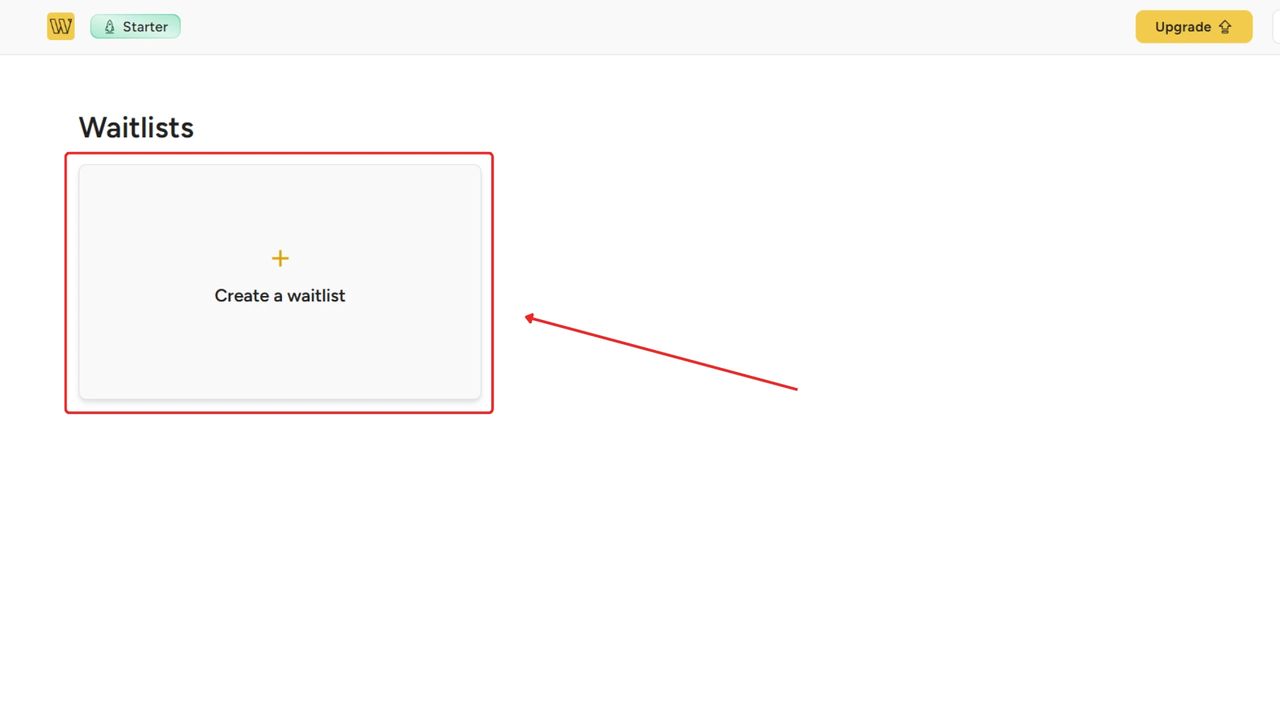
After you've created an account and logged in, you'll be redirected to the "Waitlists" page. This is where you can view all your waitlists, as well as create new ones.
Click "Create your first waitlist" (or "Create a new waitlist" if you already have one).
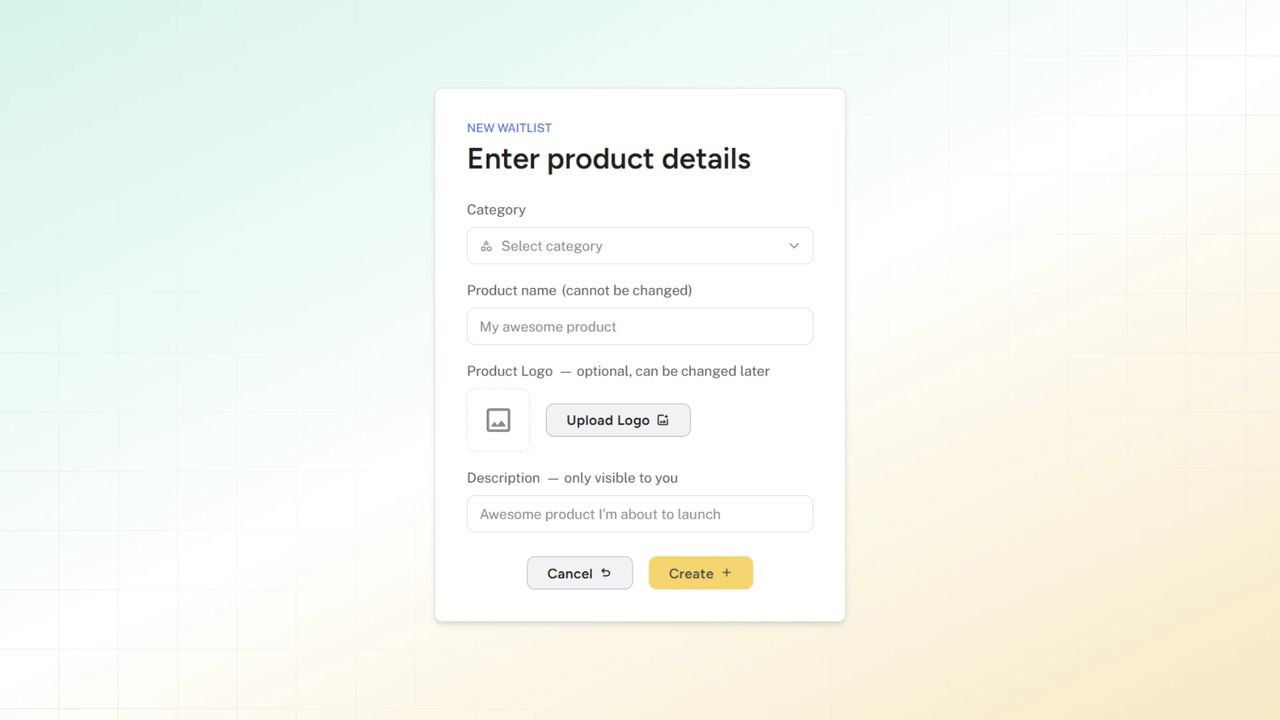
Next, enter your product's details: a product name (required, 3–30 characters, and it must be available), a category and a logo (both optional), and a description (optional, visible only to you).
You cannot change the product name later, and your page URL (waitlister.me/p/your-product-name) is based on it. You can change the logo and description later. If you are not happy with the name or are just testing, you can create another waitlist within your plan's waitlist limit.
Once you've entered all the details, click "Create".
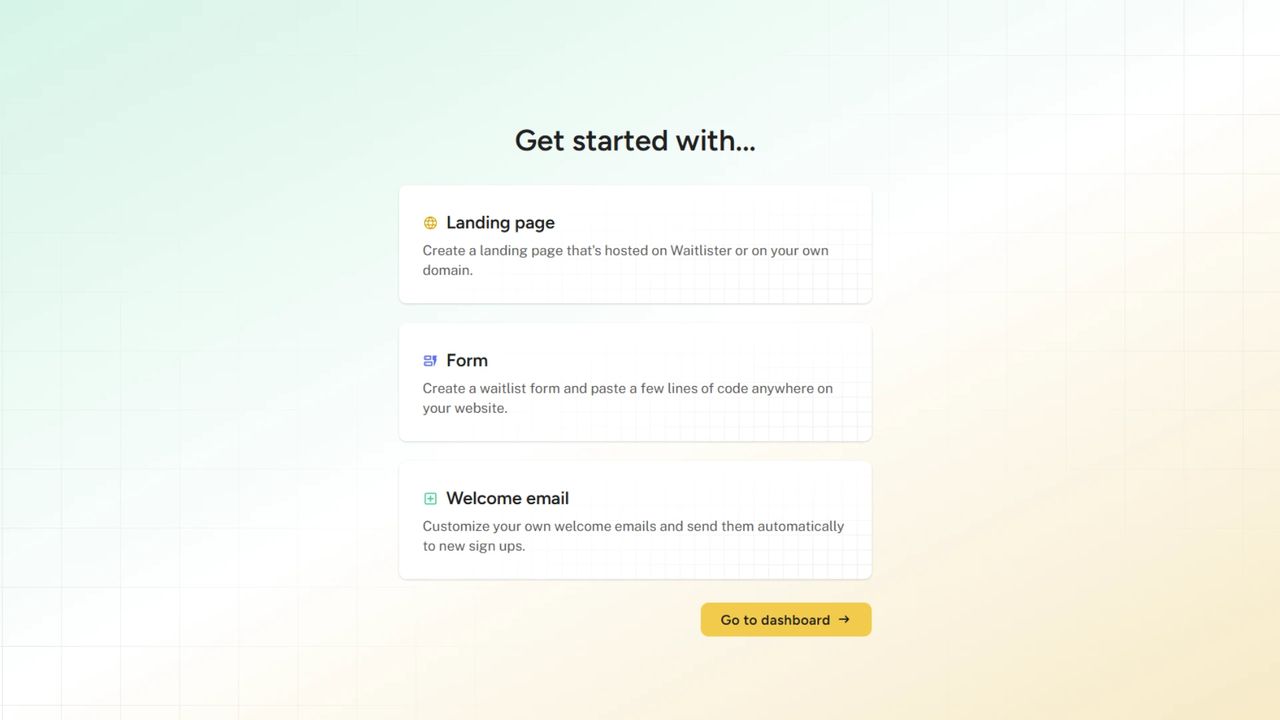
On the next page, choose your setup method: "Create a landing page" or "Integrate with existing website".
For a landing page, pick a template, confirm the page title, and click "Publish my page". To integrate with your own site, answer "How do you want to collect signups?" (your own form or Waitlister's embeddable form) and select your platform.
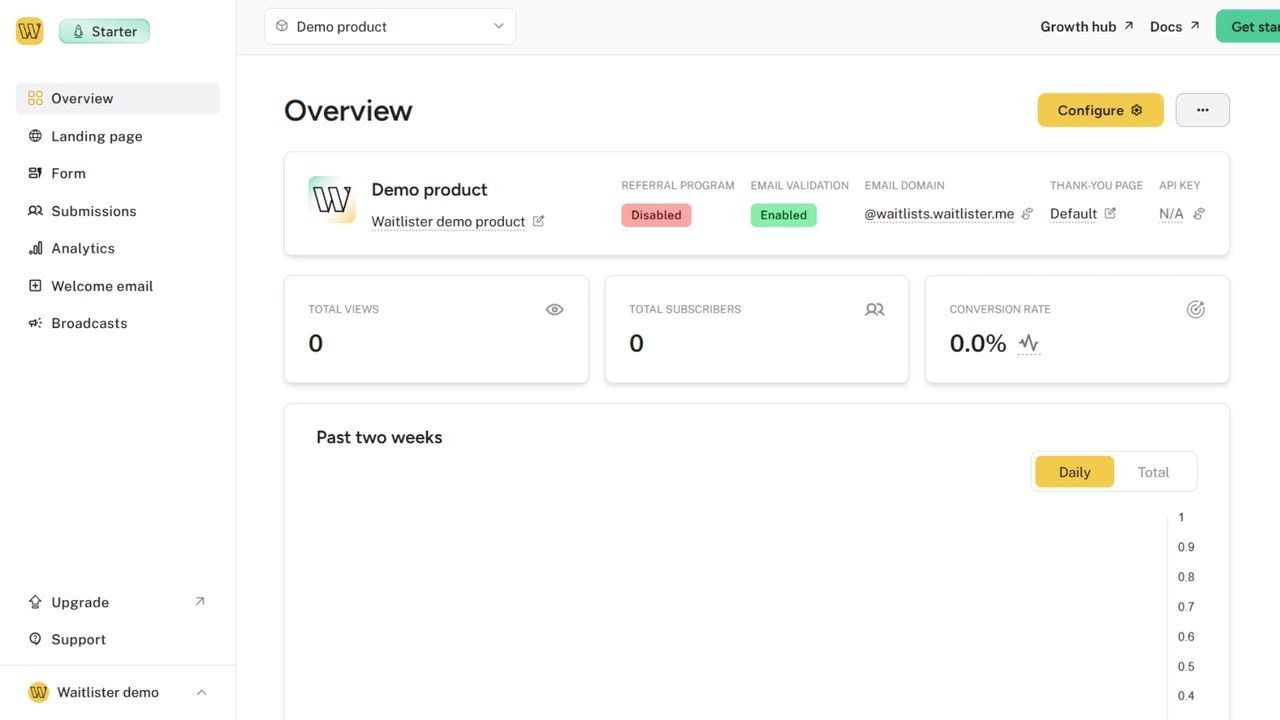
And that's it! Your waitlist is created. Whenever you need a new one, the steps are the same. The Free plan includes one waitlist, Launch includes three, and higher plans include more (compare plans).
Next Steps
Next, you might want to:
- Check your waitlist configuration and update it if needed.
- Either create a landing page,
- or create an embeddable form if you want to display a waitlist form on your website.
We also provide an API for adding subscribers and logging views for your waitlists from external applications.
Help and Support
Need assistance? We're here to help you make the most of Waitlister.
- Contact us via the public contact form
- Access the "Help" page in your account dashboard for direct support